Sat>IP anywhere
Satelliten- und Kabel-TV ruckelfrei für zu Hause oder unterwegs
SAT>IP im Internet oder Zuhause. Ihr privates Satelliten oder DVB-C TV - sicher und legal auf Handy, Tablet, PC, Android TV & Fire TV.
Apps für unterwegs und Zuhause

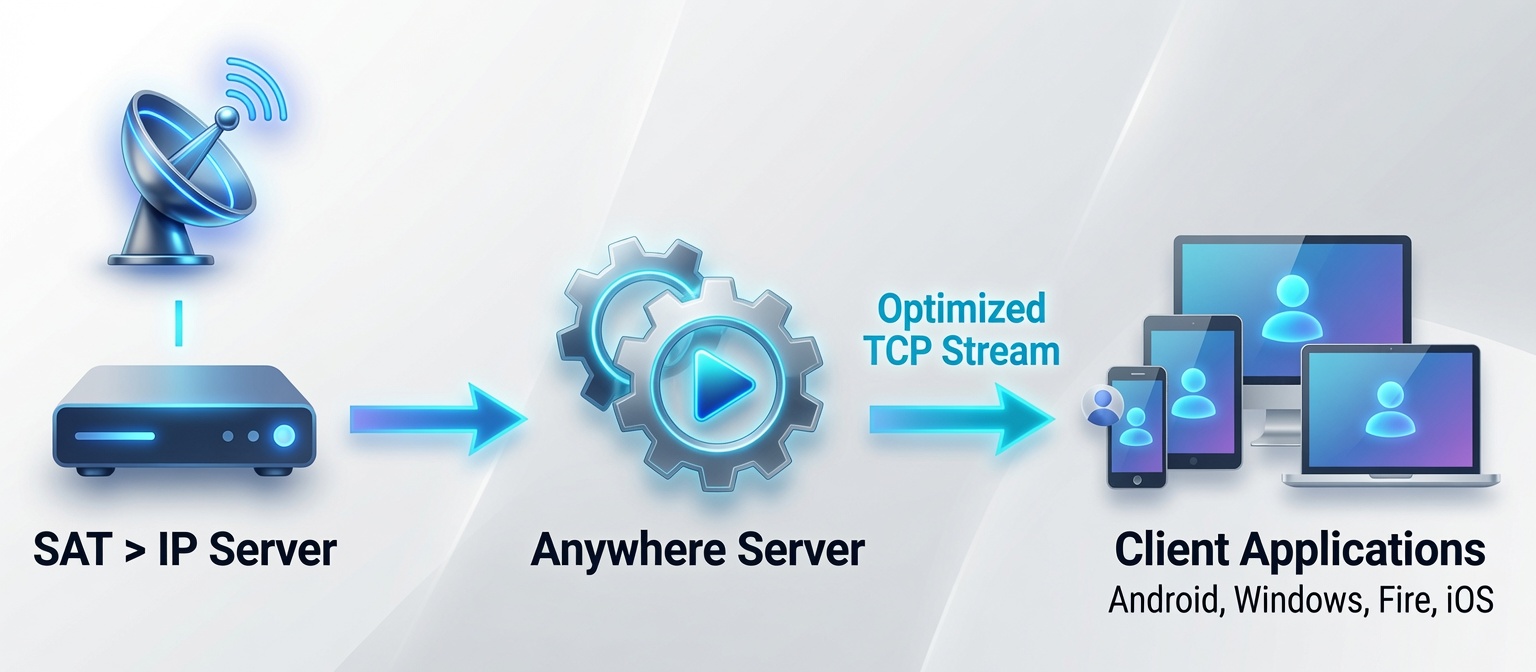
Architektur
In drei Schritten startklar
Server App auf dem Windows-PC, App auf dem Gerät
Heimnetz vorbereiten
SAT>IP-Gerät oder kompatible FRITZ!Box laufen im LAN. Für unterwegs: UPnP bzw. Portfreigabe und idealerweise DynDNS.
- SAT>IP-Server mit fester IP (oder DHCP-Reservierung im Router)
- Optional: UPnP / selbstständige Portfreigabe für den Windows-PC
- Für Zugriff von außen: DynDNS-Name am Router
Windows-Server App einrichten
ZIP von der Download-Seite entpacken oder über den Microsoft Store installieren und Server App starten. Beim ersten Lauf wird das Setup durchgeführt.
- UPnP: empfohlen (Ports werden dynamisch geöffnet)
- HTTPS für unterwegs · HTTP nur lokal / Android TV
- M3U importieren, Kanäle zuweisen, Liste speichern
App verbinden
In den App-Einstellungen Server (DynDNS oder LAN-IP), Port, Benutzer und Passwort eintragen.
- Eigene Client-ID pro Gerät
- Bei HTTPS: Zertifikat per QR-Code vom Server scannen
- Optional: "Data Saver" für unterwegs (1 Mbit/s max)
- Ansicht „Erweitert“ aktivieren
- Heimnetz → Netzwerk → Netzwerkeinstellungen → Statusinformationen über UPnP übertragen
- Internet → Freigaben → Windows-PC → Selbstständige Portfreigabe erlauben
Andere Router: Einstellung oft unter „UPnP“. Ausführlich: giga.de – UPnP
Für Nutzung außerhalb des Heimnetzes SSL aktivieren und einen DynDNS-Namen verwenden. Beim ersten SSL-Start erzeugt der Server ein Zertifikat (DDNS-Name + Zertifikat-Passwort). Das Zertifikat-Passwort ist nicht dasselbe wie das App-Login-Passwort.
DynDNS z. B. über ddns.de · FRITZ!Box-Anleitung: heimnetz.de
Werkzeug-Symbol → Server = DynDNS oder lokale PC-IP. Port und HTTPS-Schalter müssen zur Server-Konfiguration passen. Benutzername und Passwort wie unter „Use Basic Auth“.
Zertifikat ändert sich nicht und gilt für alle Nutzer: Am Server „Certificate QR-Code“ öffnen, in der App „Scan Certificate“ und QR scannen.
Sat>IP anywhere: Ihr Fernsehen, grenzenlos.
Mit SAT>IP anywhere erweitern Sie die Reichweite Ihres lokalen Sat>IP-Servers oder AVM DVB-C Routers. Die Software ermöglicht den Empfang von Satellitenfernsehen auf verschiedenen Endgeräten, unabhängig von Ihrem aktuellen Standort. Quasi die moderne Variante der legendären Slingbox. Die Basis des Systems bildet eine C#-Serveranwendung, die hier heruntergeladen werden kann. Diese kommuniziert mit der vorhandenen SAT>IP-Hardware und transkodiert den Live-Satellitenstream in Echtzeit. Dadurch wird das Signal für eine stabile Übertragung über das Internet angepasst. Die Architektur des Servers ist dabei auf möglichst kurze Umschaltzeiten zwischen den Kanälen ausgelegt. Für die Wiedergabe steht eine Android-Client-Anwendung zur Verfügung, die für Smartphones, Tablets sowie Android (TV)- und Fire-TV-Geräte konzipiert ist. Sie ermöglicht den europaweiten Abruf der heimischen Satellitensender über eine aktive Internetverbindung.
Hauptmerkmale
Server-seitiges Transcoding
Optimierte Streams für jedes Gerät
.Net-basiertes Backend
Effiziente Serveranwendung basierend auf dem VLC Player
Android, Windows & iOS
Nahtloses Ansehen auf Smartphones, Tablets und Android/Fire TVs. Der Beta Test für iOS, tvOS ist angelaufen
TV auch unterwegs
Schauen Sie TV auch außerhalb Ihres Heimnetzwerks
Sehr reaktionsschnell
Schnelle Kanalwechsel (kein hls)
SAT>IP & DVB-via-IP
Unterstützt den SAT>IP Standard und SAT>IP via DVB-C (DVB-via-IP)
Efficient
Die SAT>IP-anywhere-Server-App arbeitet effizient und belastet die CPU kaum.
Sicher
Sicheres Streaming per SSL.
Sicher
Der SSL Port kann im Router per UPnP dynamisch geöffnet werden.
Verpassen Sie keinen Moment mehr – Ihr Fernseher ist jetzt überall dabei.
Einschränkungen
- 🌍 Wir weisen darauf hin, dass die grenzüberschreitende Nutzung der Streams aus lizenzrechtlichen Gründen auf die Mitgliedsstaaten der Europäischen Union beschränkt ist. Beim Betrieb des Servers außerhalb der EU ist der Abruf der Streams strikt auf das jeweilige Aufenthaltsland des Servers begrenzt.
- 📁 Aus rechtlichen Gründen sind keine vordefinierten Kanallisten enthalten. M3U-Senderlisten können jedoch für alle Satelliten direkt über die Server-App generiert oder aus externen Quellen importiert werden.
- Ausschließlich für den privaten Gebrauch.
Feedback & Wünsche
Hilf uns, Sat>IP anywhere besser zu machen! Dir fehlt ein Feature oder etwas funktioniert nicht?
Support & Community

Häufig gestellte Fragen (FAQ)
Alles Wichtige rund um das Streaming mit Sat>IP anywhere im Überblick.
Learn about the
SAT>IP Standard
SatIp Specification Version 1.2.2.pdf (PDF)
VLC® and VLC media player™ are trademarks of the VideoLAN non-profit organization.